

Kinzoo Messenger is the worry-free social messaging app for kids and families. Whether you’re group chatting with aunts, uncles, cousins and grandparents, or your kid needs a safe digital hangout for their gaming buddies, this is the all-in-one app made for connection, creativity and curiosity.
And, getting started with Kinzoo Messenger is easy. Below, you’ll find complete step-by-step instructions that’ll have you chatting in no time.
{{messenger-inline-cta-1}}
If you’re a parent downloading Kinzoo Messenger for your kids
Follow these instructions below if you’re setting up Kinzoo Messenger for yourself and your kids from scratch. If your kid has already downloaded Kinzoo Messenger and created a kid profile, jump to the next section below for instructions on how to unlock their account and create your own at the same time.
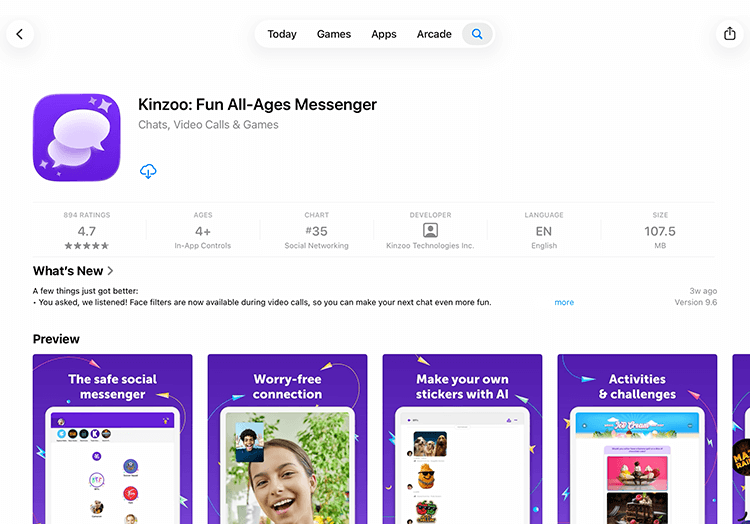
Step 1: Download Kinzoo Messenger on your own phone or tablet
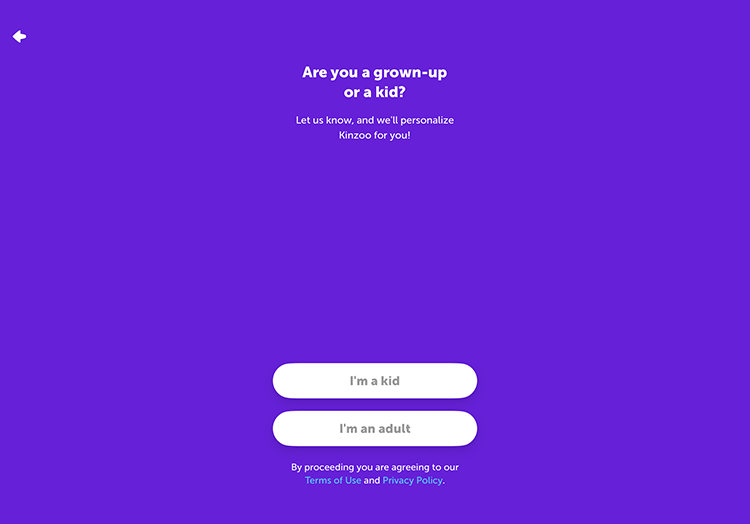
Step 2: Set up your parent account by following the on-screen prompts
Step 3: Follow the on-screen prompts to create a profile for your child
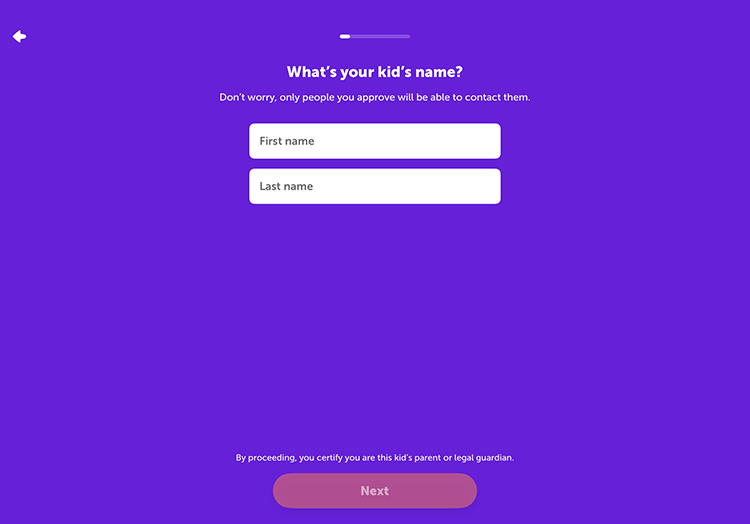
Step 4: Download Kinzoo Messenger onto your child’s device using your account and PIN
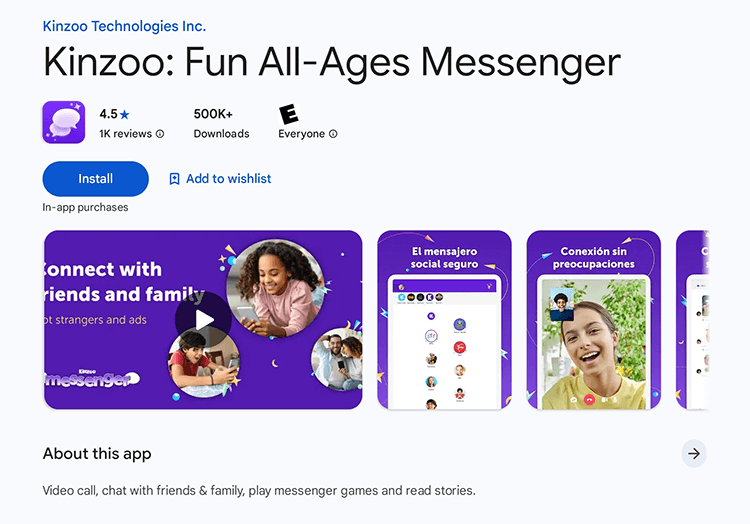
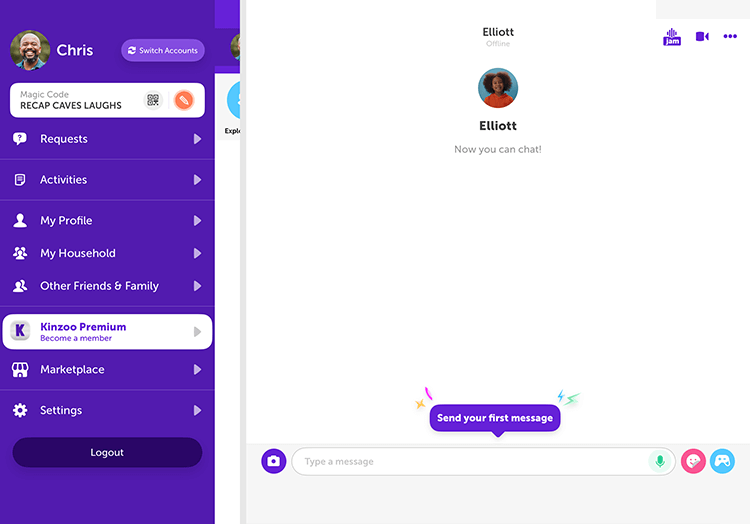
Step 5: Open your settings screen, tap Switch Accounts and sign in using your child’s PIN
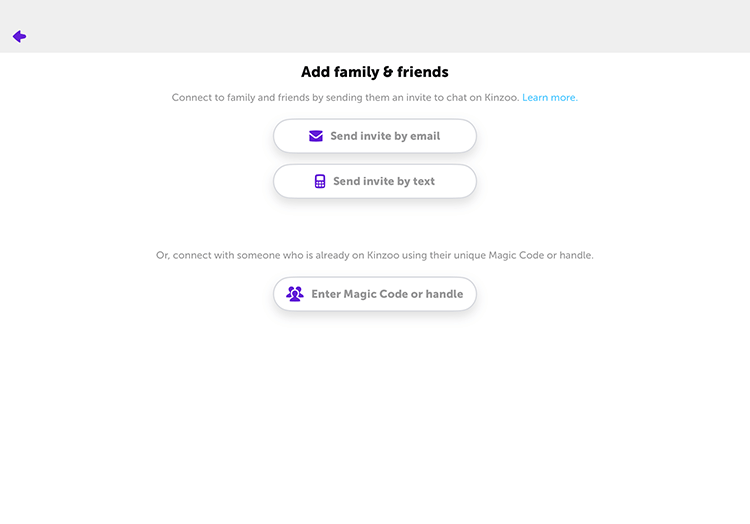
Step 6: Invite family and friends to download the app and connect!
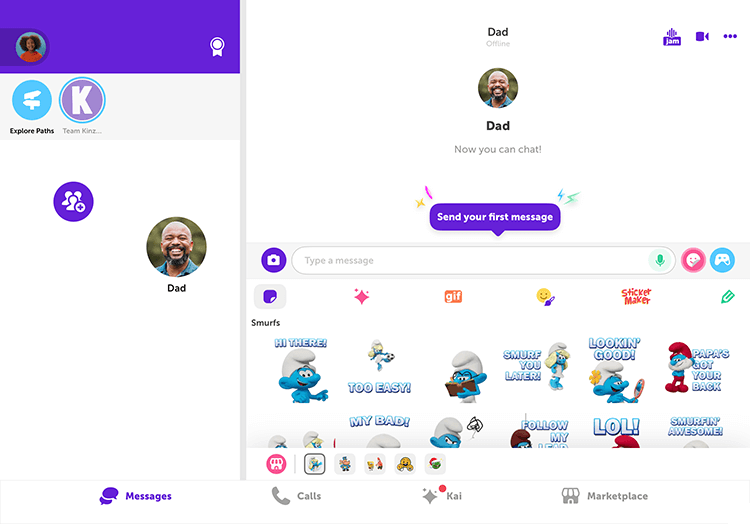
Step 7: Send your first message! GIFs and stickers are highly recommended.
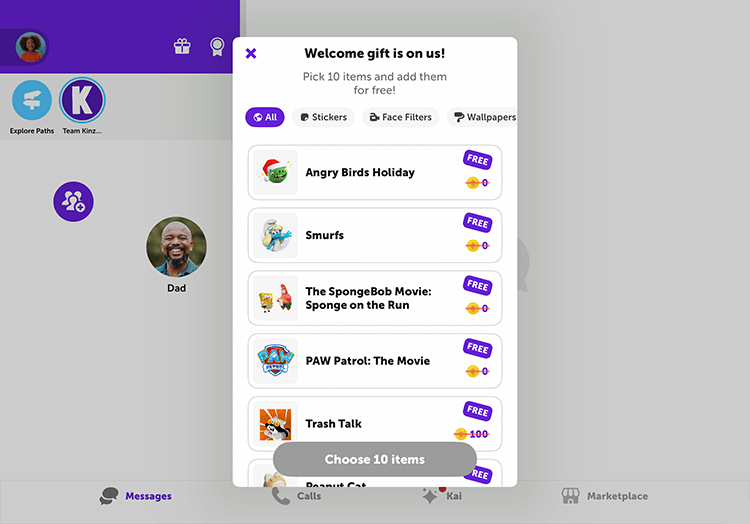
Step 8: Don’t forget to collect your welcome gift!
If your kid has already set up a kid profile
If your child downloaded Kinzoo Messenger and created a kid profile on their own, you can unlock it in one of two ways. Choose the option that matches how you plan to set up your adult account.
Option 1: Set up your adult account on your child’s device
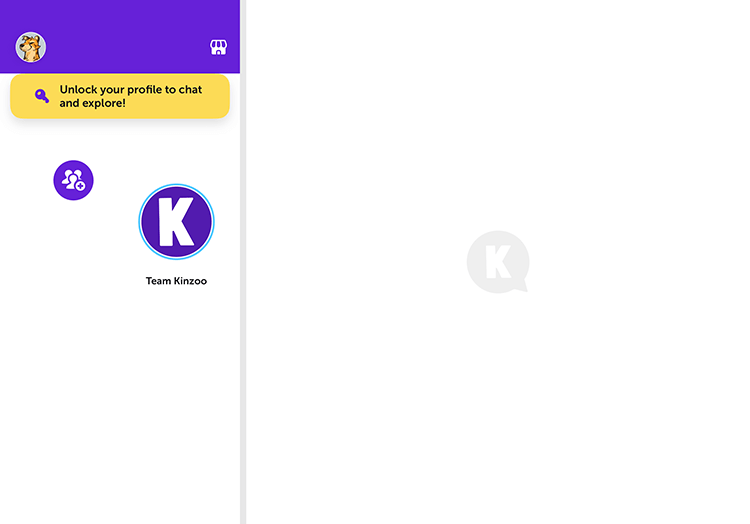
Step 1: Open Kinzoo Messenger on your child’s device. Tap Unlock your profile to chat.
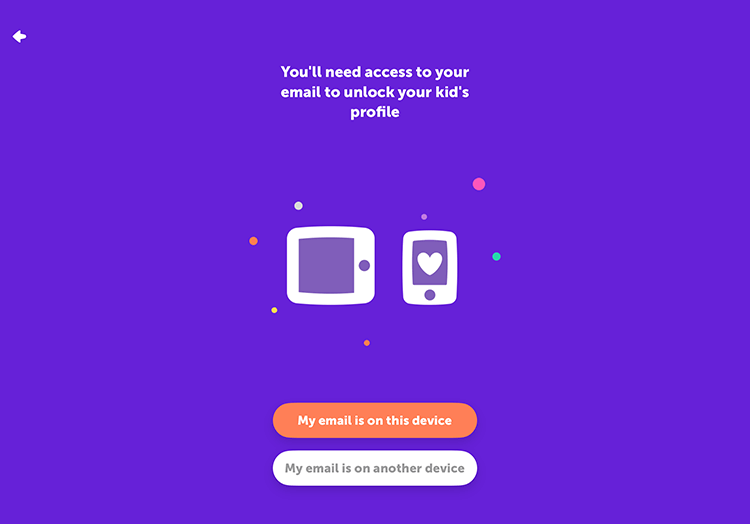
Step 2: Choose My email is on this device and follow the prompts to create your adult account. You’ll enter your email, request a verification code, and add your name.
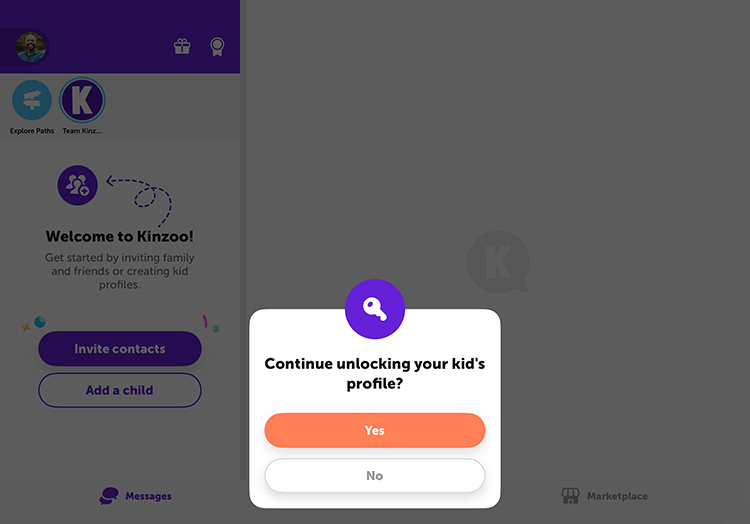
Step 3: Once your account is created, the home screen will ask if you want to unlock your child’s profile. Select Yes and follow the steps.
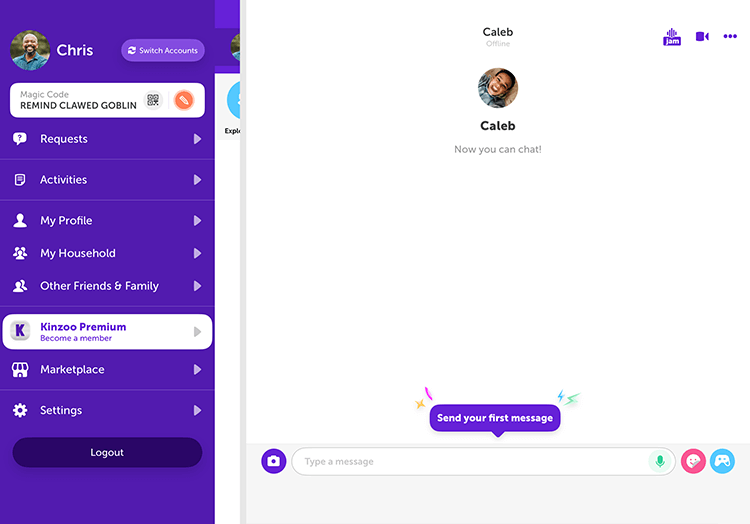
Step 4: After the profile is unlocked, tap your profile picture at the top and choose Switch Account to move into your child’s profile.
Step 5: Invite family and friends to download the app and connect!
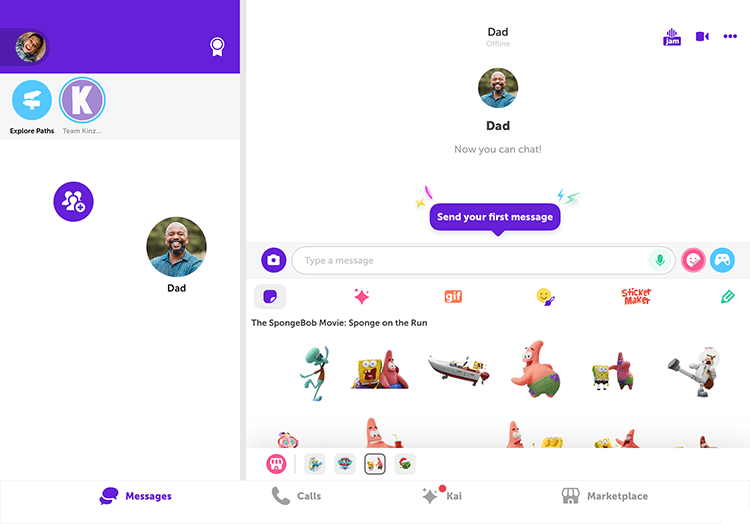
Step 6: Send your first message. GIFs and stickers are highly recommended.
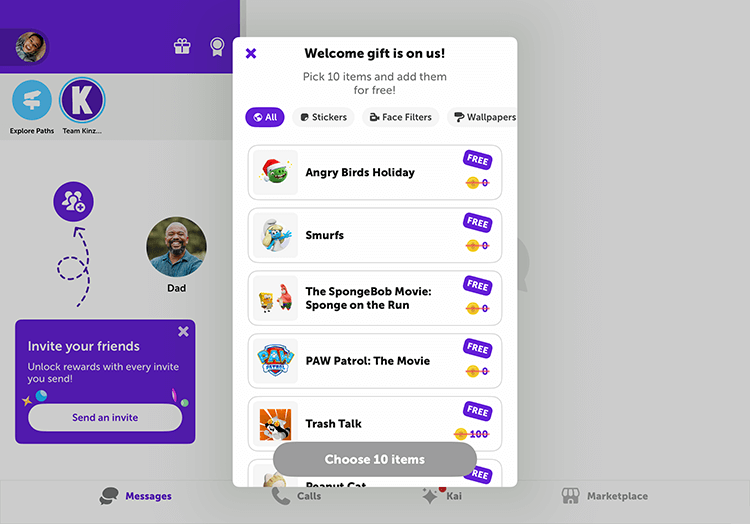
Step 7: Don’t forget to collect your welcome gift.
Option 2: Set up your adult account on your own device
Step 1: Download Kinzoo Messenger on your device. Tap Join Kinzoo then I’m an adult to create your account.
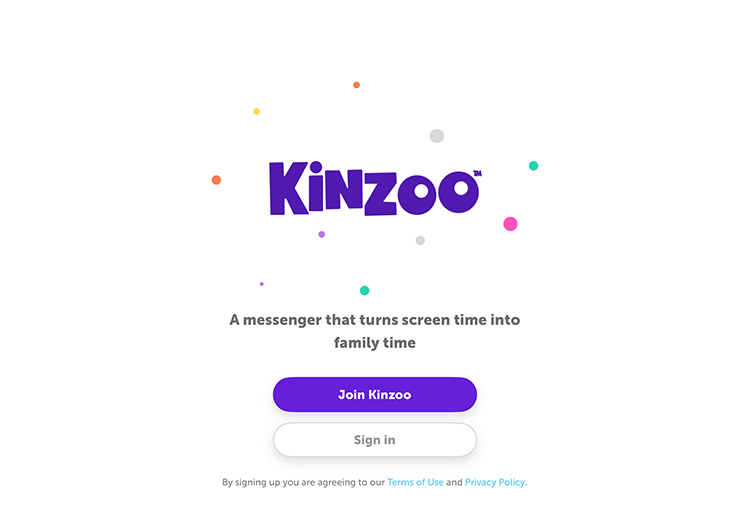
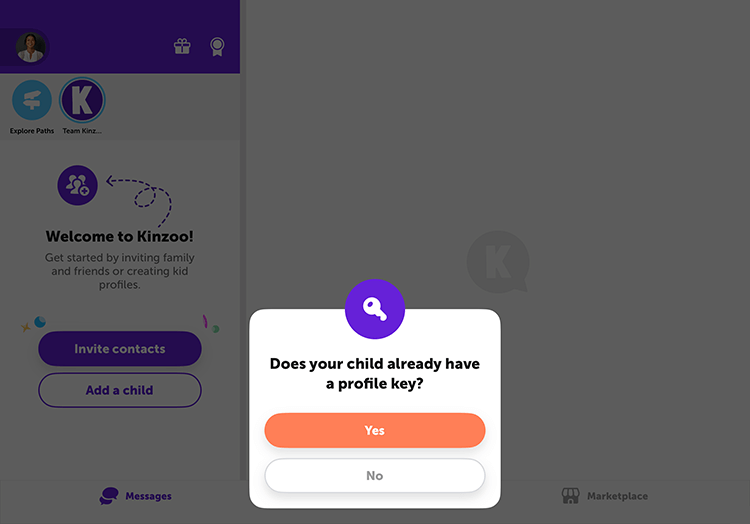
Step 2: Once your adult account is created, the home screen will ask if your child already has a profile key. Select Yes.
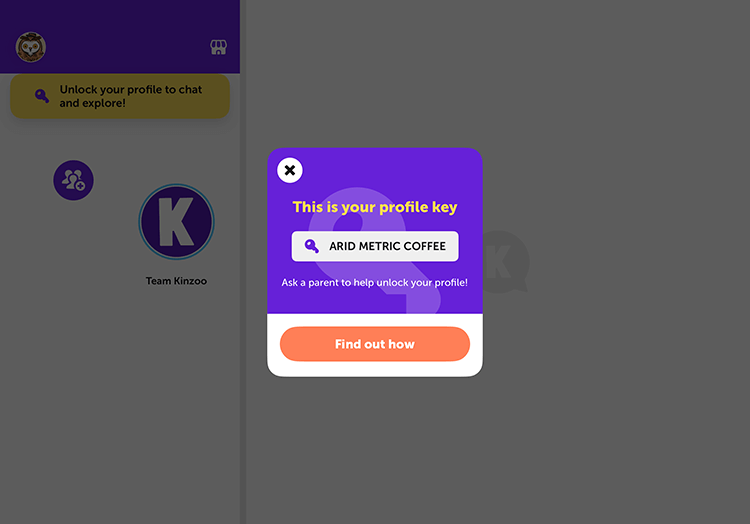
Step 3: On your child’s device, open Kinzoo Messenger and locate the profile key on their locked profile. Enter that code on your device to unlock it.
Step 4: Refresh your child’s device and they’ll see their profile unlocked.
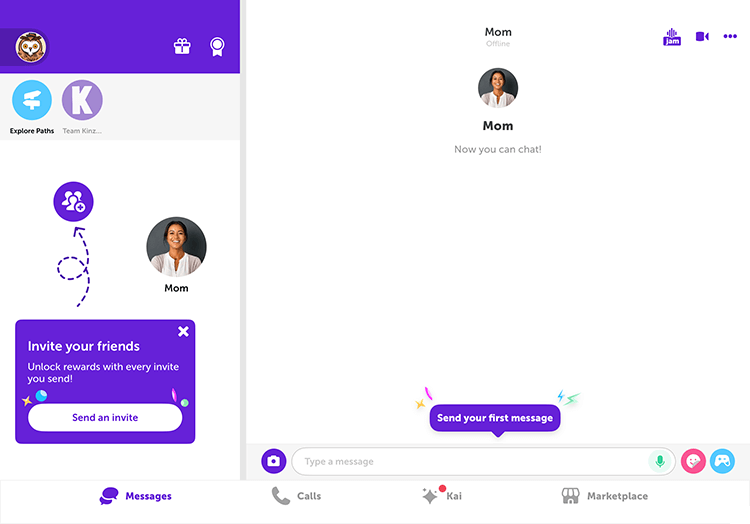
Step 5: Invite family and friends to download the app and connect!
Step 6: Send your first message. GIFs and stickers are highly recommended.
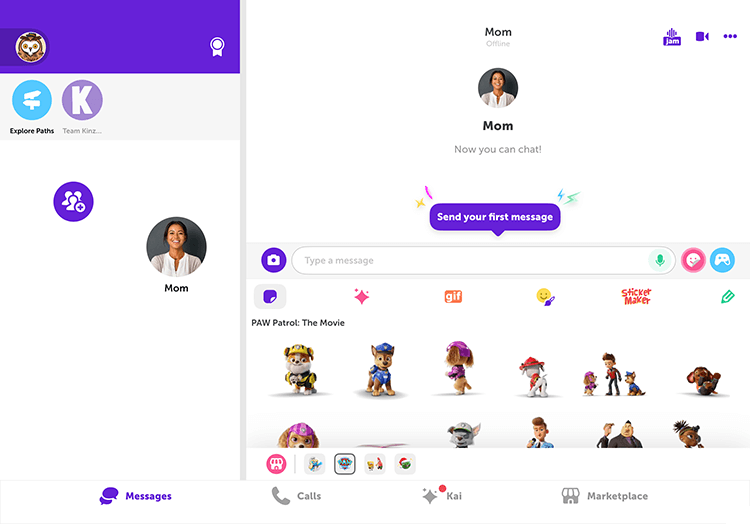
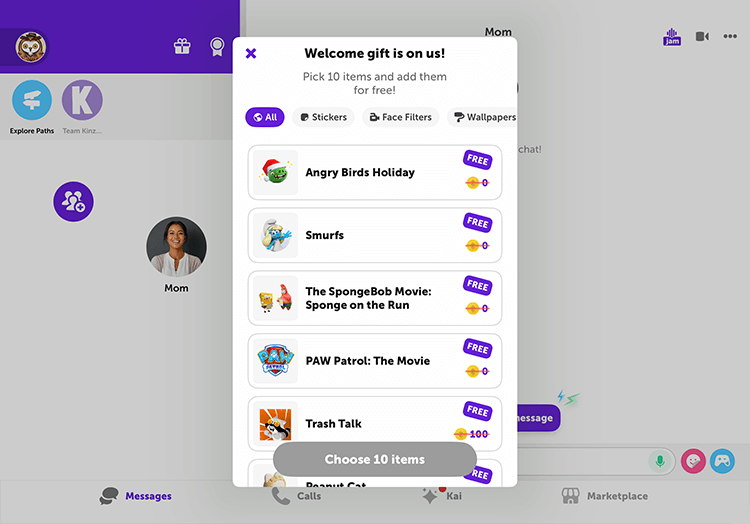
Step 7: Don’t forget to collect your welcome gift.
If you need any more help getting set up with Kinzoo Messenger, we’re here to help. We hope you enjoy exploring the app. Happy chatting!