


Got a shiny new Samsung Galaxy phone for your kid and wondering how to set it up in a way that keeps things safe, secure and age-appropriate? You’re in the right place! Samsung phones come with plenty of options to tailor content and screen time, helping you create a phone experience that works for your child’s needs (and gives you some peace of mind). Let’s dive into the step-by-step setup!
{{messenger-inline-cta-1}}
Step 1: Initial Setup and Google Account
- Turn on the Phone: Press and hold the power button until the Samsung logo appears. Connect to Wi-Fi to continue.
- Sign in or Create a Google Account: For full access to apps and features, sign in with an existing Google account or create a new one just for your child’s phone. If your child doesn’t have a Google account yet, you can now create a supervised account during setup—no separate app required.
- Set Up a Lock Screen: Add a secure lock, like a PIN or pattern. This will help keep their content secure. If your kid is younger, it’s a good idea to know their passwords—but if they’re a little older, have them write it down and place it in a sealed envelope in a safe spot.
Step 2: Create a Samsung Account (Optional but Recommended)
Creating a Samsung account unlocks additional features, like Samsung Kids mode and cloud backups.
- Go to Settings > Accounts and Backup > Accounts: Select Add Account and choose Samsung Account.
- Follow the Steps to Create an Account: This will allow access to Samsung-specific features and apps. While Samsung accounts unlock tools like Samsung Kids, most parental control functions still run through Google Family Link or Digital Wellbeing.
Step 3: Activate Samsung Kids Mode
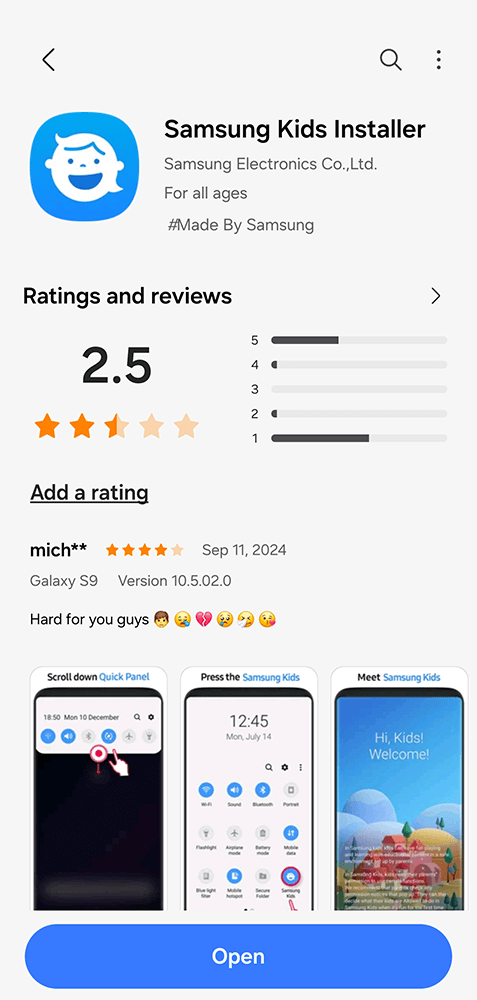
Samsung Kids mode is a great tool for parents—it offers a secure, child-friendly environment with pre-selected content and apps that you can manage.
- Open Settings and Search for Samsung Kids: You can access Samsung Kids by typing it into the settings search bar, or sometimes it’s right in the quick access panel.
- Set Up a PIN for Samsung Kids: This PIN lets you control access to Samsung Kids mode so that only you can adjust the settings.
- Explore the Options in Samsung Kids: You’ll find kid-safe apps, videos, and educational content that’s age-appropriate. Plus, you can customize what’s available based on your child’s needs. You can also set daily playtime limits and review usage reports to see what your child’s been exploring.
Step 4: Set Up Parental Controls
Samsung offers robust parental controls through both Google’s Family Link and its own settings.
Google Family Link
- Download the Family Link App (if needed): Family Link now comes pre-installed on most Samsung phones running Android 13 or later, but you can also download it manually if needed.
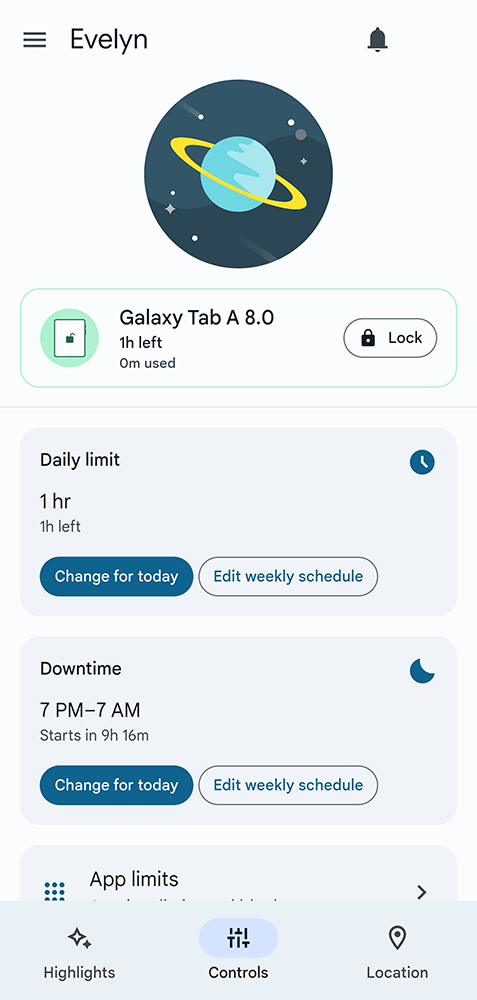
- Link the Accounts: Follow the on-screen steps to connect your account with your child’s. This lets you set screen time limits, manage app installs, and track usage.
- Set Daily Screen Time Limits: Create screen time schedules and set specific times when the phone will lock for downtime.
Samsung’s Parental Control Settings
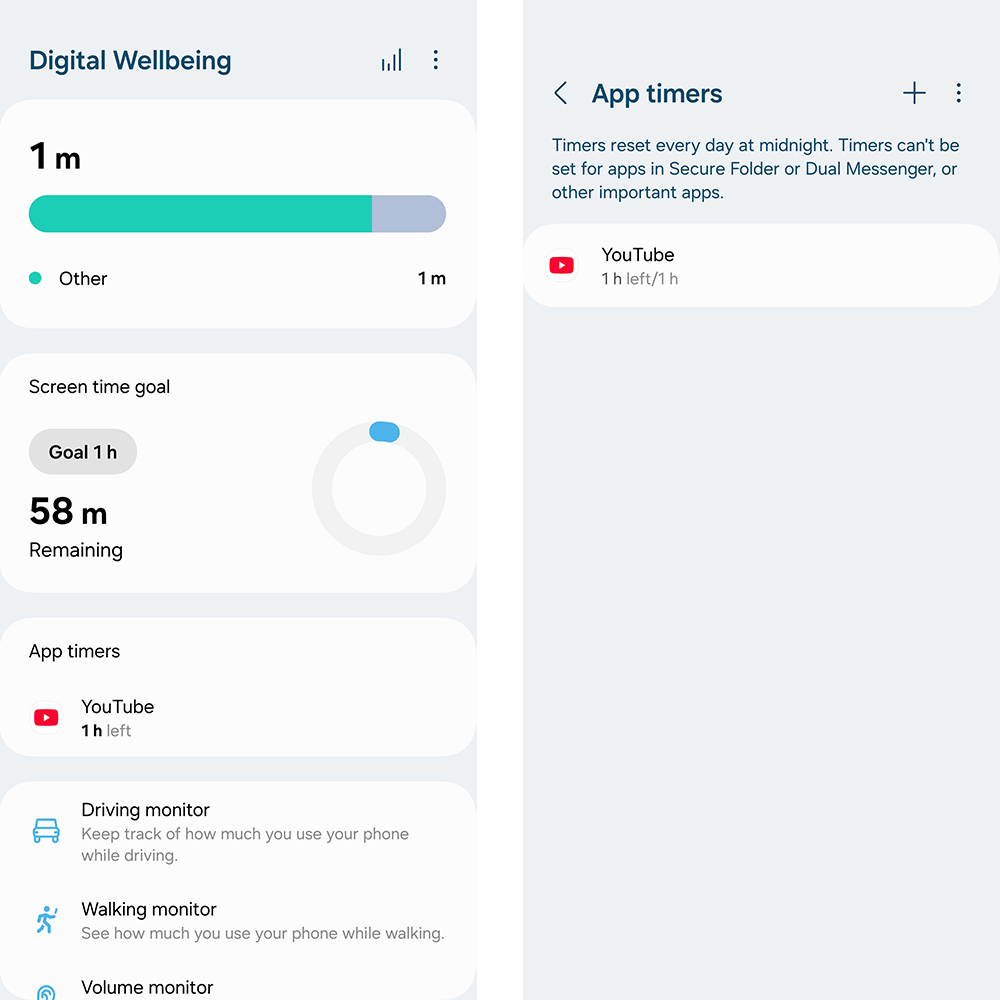
- Navigate to Digital Wellbeing and Parental Controls: In the settings menu, tap Digital Wellbeing to access tools for managing app usage, screen time and more.
- Set App Limits: From here, you can limit specific apps or categories, like social media, to help maintain a balanced screen time routine.
- Review Weekly Activity Reports: Digital Wellbeing provides reports on app usage, so you can keep an eye on how your child is using their phone.
Step 5: Set Content Restrictions on Google Play
Control what’s downloadable by setting content restrictions in the Google Play Store:
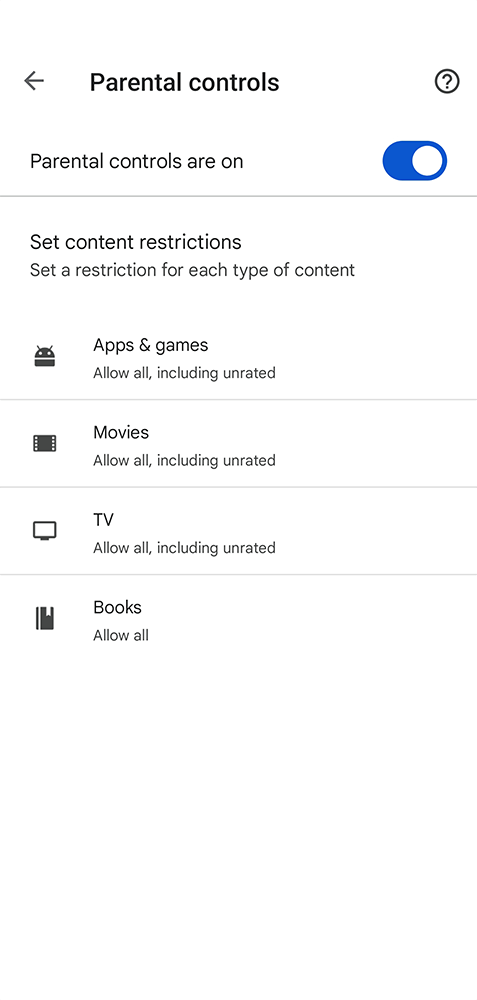
- Open the Google Play Store and Go to Settings: Tap your profile icon and select Settings > Family > Parental Controls.
- Enable Parental Controls and Set Content Ratings: Choose ratings for apps, movies, music, and books that match your child’s age.
- Limit In-App Purchases: Require authentication for any purchases so you won’t end up with surprise charges. For supervised accounts, purchase requests now appear directly in Family Link for parent approval.
Step 6: Teach Healthy Usage Habits
Setting up a phone for your child also means setting the stage for good digital habits. Talk to your kid about healthy screen time, online privacy and responsible usage on the regular. Here are a few quick tips:
- Encourage Downtime: Show them the importance of balancing screen time with off-screen activities.
- Discuss Safe Online Behavior: Make sure they know how to handle messages from unknown numbers and the importance of protecting personal information.
- Review Together Regularly: Every few months, sit down together to review settings and see if any adjustments are needed as they grow.
With these steps, your child’s Samsung Galaxy phone will be set up for safety and fun, giving you peace of mind that they’re exploring in a secure environment. Happy chatting!